
Before you start:
- Have your energy plan time of use rates
- Have Admin account access to your system. Speak with our service team on 1300706870 Option 3 to arrange.
Step 1:
Tap on the 3 dots in the top right corner and click “Apply for Deye Copilot”
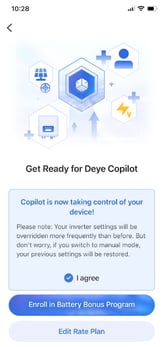
Then Tap “I agree” and “Enroll in Battery Bonus Program”
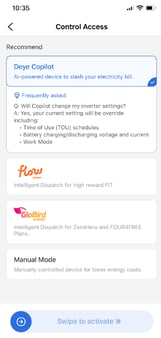
Keep the system in “Deye Copilot”
Swipe to Active at the bottom

Step 2:
-
Select Flat-Rate Tarriff for Import and Export
-
You will be asked to name the rate profile.
-
Leave repeat cycle as “Always the Same”
-
Fixed Feed in Subsidy remains off


-
You Will then need to enter a full 24hr period of import/export rates.
-
Starting at 00:00 on the first time segment.
-
Enter the Grid Import Charges and Grid Export Charges for that time segment.
-
Tap the “ + Time Segment” to enter a new line and import/export rates
-
Continue this all the way through to 24:00 completing at full 24hr rate period. Note in the below example, the free grid charging period is from 12:00 – 15:00

Step 3:
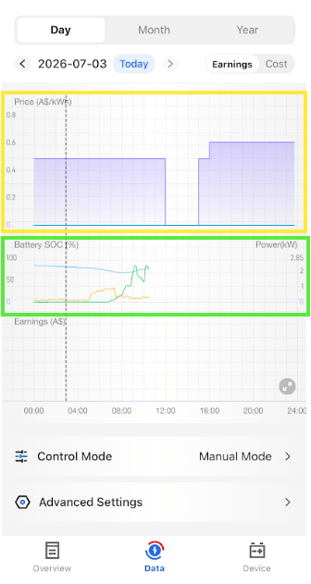
You will see a graphical representation of the rate data you have entered in the previous step. (highlighted in yellow)
Below that, you will see the Copilots energy strategy, and expected usage. This will update as it learns your usage pattern. (highlighted in green)
You can slide your finger across the graph to move the dotted line and see what import/export value is listed for that time
Check the rates match your billing rates
Step 4
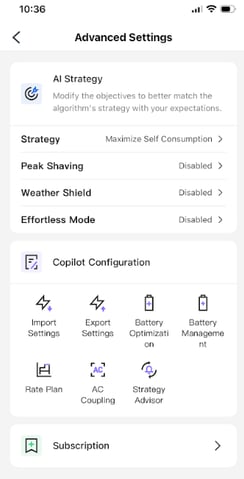
Tap Advanced Setting:
Change Strategy to: “Maximum Earning”
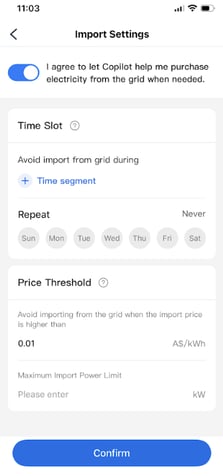
Import Settings: Toggle “I Agree to let Copilot purchase from Grid”
Price Threshold: Set to $0.01/kWh
(essentially saying only import additional power for battery when the grid rate is $0.00 or below, this won’t affect grid consumption if the battery is flat or the site needs more power than the solar and battery can provide)

Step 5
Other advanced settings you can review:
Export Settings: use this to limit how much the system exports to grid, particularly during the evening directly from the battery. During winter you may want to limit this down to a 0.5-2kw rate to ensure you maintain enough battery to get you through the night. The system will try to export power for billing credits based on your learned usage, but can leave you with no battery power early morning if you exceed the estimated consumption.
Rate Plan: Tap here to modify the time of use rates if there is a rate change to your plan or you change providers.
Strategy Advisor: Turn on, this gives you a little message above the Daily Data about the Copilots current strategy, so you get an idea of what actions its taking and why.
Peak Shaving: Not generally applicable to residential rate plans
Weather Shield and Effortless Mode: Optional if you want to Enable. You can tap on it and tap the ? for a run through of what it does.
Step 6
Review the systems power usage over the next few days, especially during the free energy window to see that the system is charging from grid power and at what rate.
If the system in importing power, but at a low rate, contact MyEnergy as we may need to review and tweak some inverter settings to allow for a higher grid import.
If you find you are exporting too much battery power during the evening, go back to Step 5 advanced settings and tweak the max export rate to balance against your usage.
It is the customers responsibility to ensure that the data entered to the copilot is accurate to the billing rates for your plan and to check the system is behaving withing those perameters. No responsibility is taken for billing charges as a result.
If you need assistance you can contact our service team of 1300 706 870 Option 3
To remove or reset the Copilot, you can tap on control mode and go back to “ Manual Mode”